Manage Club API access
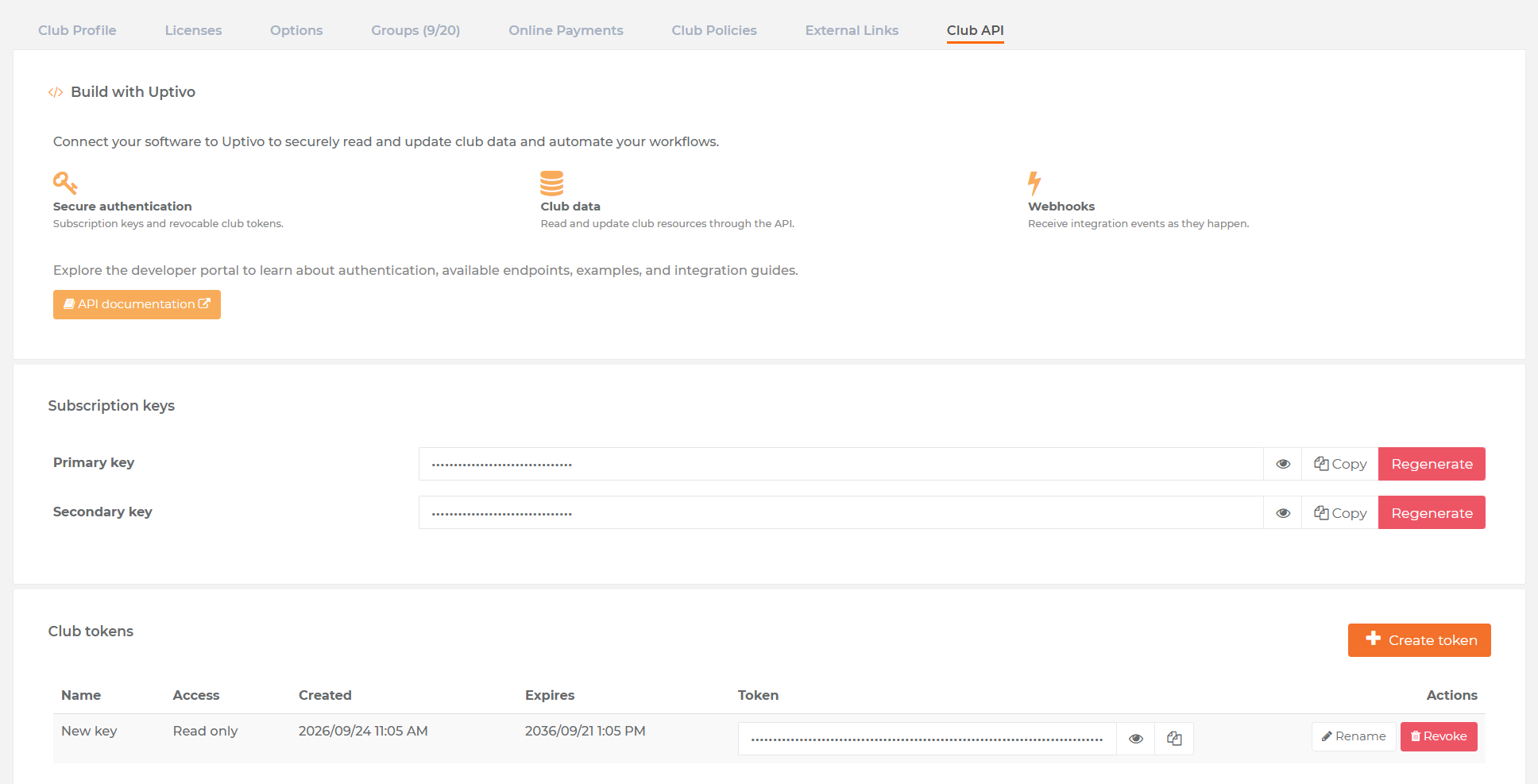
When Club API access is enabled in the selected club’s Uptivo license, its club profile includes a Club API tab. Use this page to manage the credentials used by server-to-server integrations and to inspect aggregate webhook delivery health.
The page has three sections:
- Subscription keys shows the primary and secondary Subscription Keys;
- Club tokens creates and manages the Bearer credentials for the club;
- Webhooks shows the configured destinations and aggregate delivery statistics.
Get both credentials
Section titled “Get both credentials”Every Club API request needs both credentials:
| Credential | Request header | Purpose |
|---|---|---|
| Subscription Key | X-Sub-Key: <subscription-key> |
Authorizes the integration at the API gateway. Either the primary or secondary key can be used. |
| Club Token | Authorization: Bearer <club-token> |
Selects the club and grants Read or ReadWrite access. The API reference also calls this credential the Club API Key. |
Treat the Club Token as an opaque secret and do not depend on its internal representation.
To prepare a new integration:
- In Uptivo, open the club profile and select Club API.
- In Subscription keys, copy either the primary or secondary key.
- In Club tokens, create a token with the access level needed by the integration and copy it.
- Store both values in a server-side secret store, then send them in every request using the headers above.
Rotate Subscription Keys safely
Section titled “Rotate Subscription Keys safely”Primary and secondary keys exist so that a Subscription Key can be replaced without interrupting the integration. Regenerating either key invalidates its previous value immediately.
Use this sequence to rotate the primary key:
- Configure the integration to use the current secondary key.
- Deploy the change and verify a request such as
GET /Profile. - In Club API, regenerate the primary key. Do this only after the integration has stopped using the old primary key.
- Copy the new primary key into the secret store.
- Optionally switch the integration back to the new primary key and verify it.
To rotate the secondary key, follow the same procedure in reverse: first use and verify the current primary key, then regenerate the secondary key. Never regenerate the key that the integration is actively using.
Manage Club Tokens
Section titled “Manage Club Tokens”When creating a Club Token, choose:
- a descriptive name that identifies the integration or environment;
Readfor read-only operations, orReadWritefor read and write operations;- the calendar day on which the token expires.
The page initially proposes an expiration date ten years in the future. The token expires at the end of the selected day in the club’s timezone.
You can rename an existing token without changing its secret, access level, or expiration. To change the access level or expiration, create a replacement, update and verify the integration, and then revoke the old token.
Revocation and Legacy tokens
Section titled “Revocation and Legacy tokens”Revoking a Club Token removes it from the page and prevents it from authenticating again.
Tokens marked Legacy cannot be invalidated immediately. Create a replacement, update and verify the integration, and only then remove the Legacy token. Its natural expiration remains unchanged.
Inspect webhook delivery health
Section titled “Inspect webhook delivery health”The Webhooks section is read-only. For each configured webhook subscription, it shows:
- destination URL, subscribed event types, and provisioning state;
- delivered events, failed delivery attempts, dropped events, and dead-lettered events for the last 24 hours, 7 days, and 30 days;
- the most recent aggregate interval in which a delivery error was recorded.
These are aggregate counters, not a list of individual delivery errors. Manage webhook destinations and event selections through the webhook subscription operations.
If delivery statistics cannot be retrieved, the configured webhook list stays visible and the page marks its statistics as unavailable.
Protect access
Section titled “Protect access”- Store Subscription Keys and Club Tokens only in a server-side secret store.
- Do not expose either value in browser or mobile code, logs, screenshots, tickets, or source control.
- Give each integration only the
ReadorReadWriteaccess it needs. - Create separate Club Tokens when independent integrations need separate lifecycles or permissions.
- Test the replacement credential before revoking or regenerating the old one.
Continue with Authentication for error behavior and Getting started to make the first API request.