Connect from an Agency
Use this guide when you authorize the Uptivo app through a GoHighLevel Agency account. You need access to the intended Location and permission to manage the Uptivo club. Check the prerequisites before starting.
This guide starts from a selected club in Uptivo. If you are installing the app directly in GoHighLevel, first follow Start from the GoHighLevel Marketplace. After choosing your Uptivo club there, continue with Select and confirm the Location in Uptivo if prompted. You do not need a second GoHighLevel authorization.
Start from the Uptivo club
Section titled “Start from the Uptivo club”- Sign in at my.uptivo.fit.
- Select the club you want to connect. Verify its name before continuing.
- Open Club Profile, then Integrations.
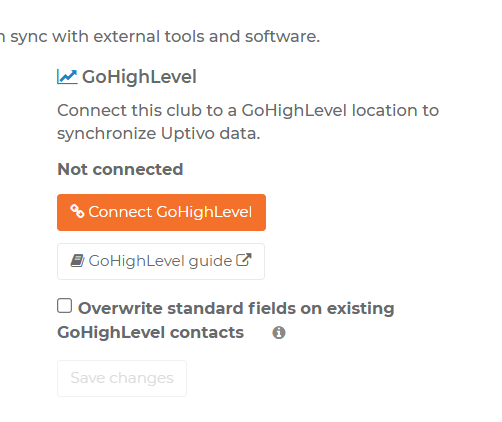
- Under Connect with Uptivo, find GoHighLevel. Review Overwrite standard fields on existing GoHighLevel contacts. Leave it unchecked to preserve existing CRM profiles, or check it to update them from Uptivo.
- Select Connect GoHighLevel. Any changed overwrite choice is saved before authorization starts. You can also save it separately with Save changes.
The option affects existing standard contact fields, including Contact Type, not Uptivo custom fields or tags. See Overwrite standard contact fields.
Continue through the authorization opened by Uptivo. Do not start from a previously copied authorization link or assume that a Marketplace installation has already associated a club.
Authorize in GoHighLevel
Section titled “Authorize in GoHighLevel”- Sign in with the Agency account that can manage the intended Location.
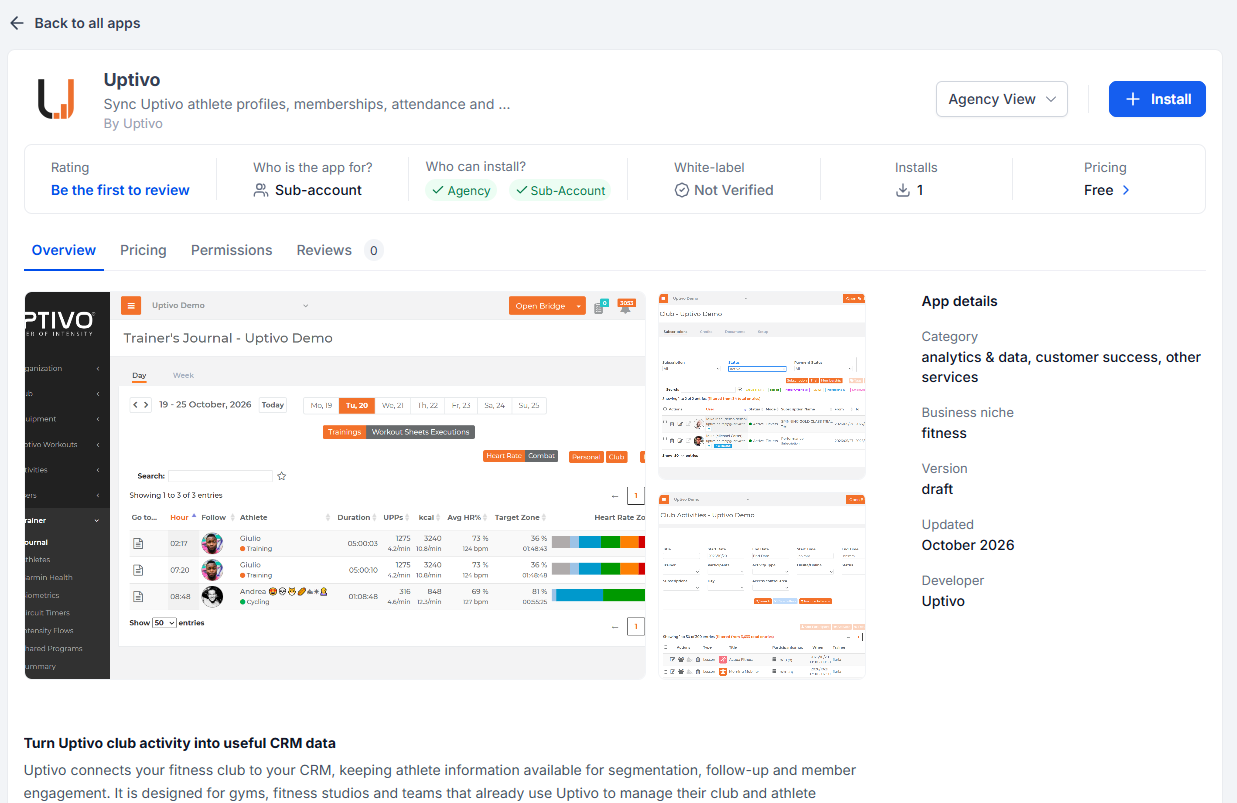
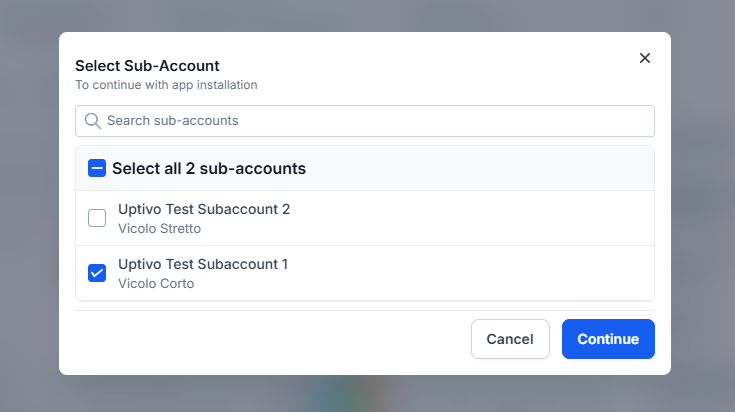
- If shown the Uptivo app page, select Install. Select the intended Sub-account/Location in Select Sub-Account, then select Continue.
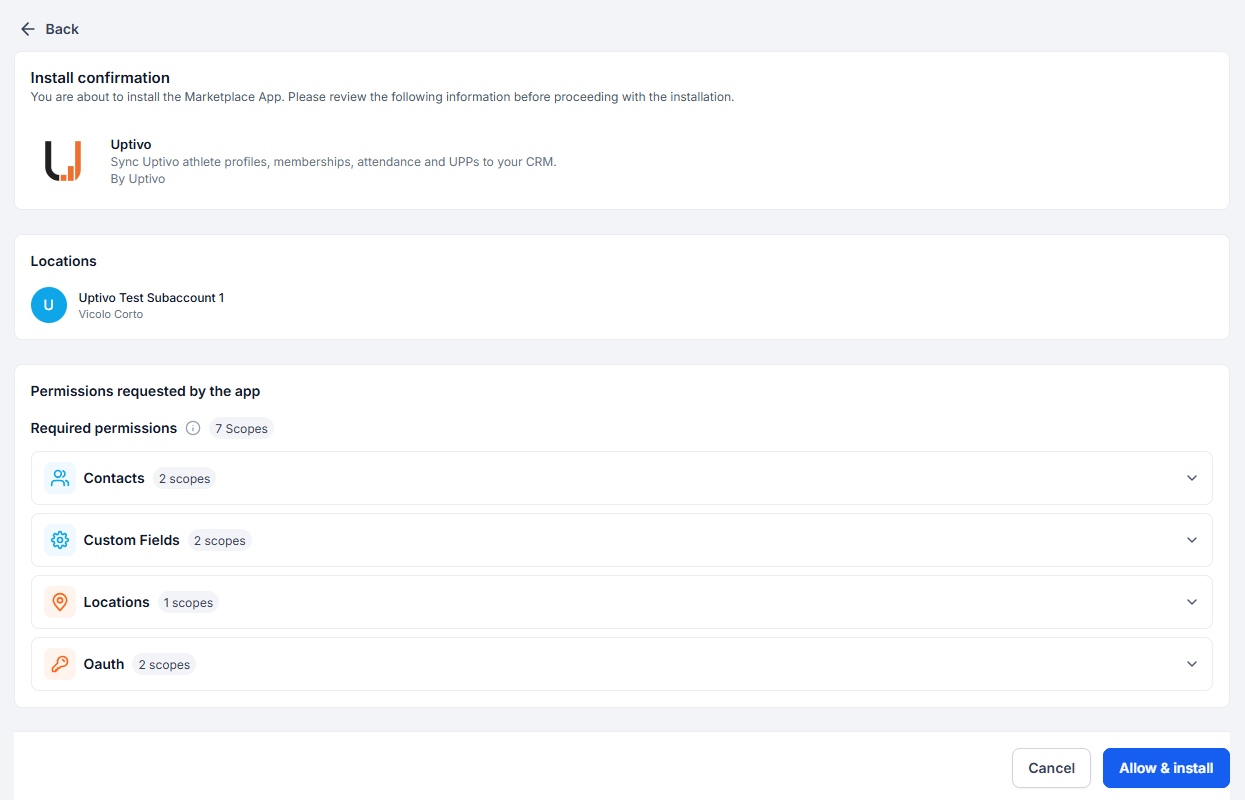
- On Install confirmation, check the selected Locations and requested permissions, then select Allow & install.
- Return to Uptivo when authorization completes. If Uptivo asks you to sign in again, continue with the account managing the original club.
View the Uptivo app page in Agency view
Agency-level authorization makes the authorized Locations available for selection. It does not automatically associate every installed Location with the selected Uptivo club.
Select and confirm the Location in Uptivo
Section titled “Select and confirm the Location in Uptivo”When Uptivo asks you to choose a Location:
- Open the GoHighLevel location selector. Check the Location name, address when shown, and ID.
- Select the Location for this club. Use Load more locations if the list has additional pages.
- Select Connect selected location. The selection is not complete until you confirm it.
- Check that Uptivo shows Connected and the expected Location ID.
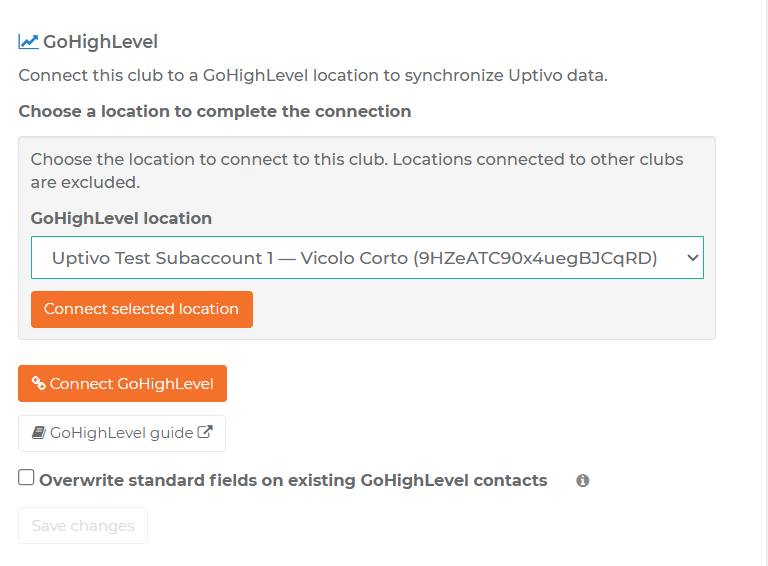
Uptivo does not choose the first available Location automatically. Locations already associated with other clubs, or still being disconnected, are excluded. If the list is empty, follow No Location is available.
If your GoHighLevel authorization was already specific to one Location, Uptivo can complete the direct Location connection without a second selector. Verify the displayed Location ID just as you would in the Sub-account flow.
Connect more clubs
Section titled “Connect more clubs”Repeat the full flow from each additional Uptivo club and select a different Location for it. For example, connect Example Club A to Location A and Example Club B to Location B under the same Agency.
Installing Uptivo in several Locations does not copy one club’s data into all of them. Each club-to-Location association is completed separately in Uptivo.
Continue with Check the first synchronization.