GoHighLevel workflow examples
These are example configurations for your team to build in the connected GoHighLevel Location. Uptivo synchronizes data and tags; it does not install these workflows or a Snapshot. You choose the audience, thresholds, messages, channels, and pipeline actions.
Prepare a test audience
Section titled “Prepare a test audience”- Complete the connection and verify a test contact.
- Create a customer-managed tag such as
club-automation-enabled. Apply it only to test contacts while configuring workflows. - Keep your campaign fields and tags separate from
Uptivo-managed data. Use a distinct prefix
such as
Club ...for fields andclub-...for tags. - Test with internal notifications before enabling member messages. Configure your own sender settings, communication preferences, and entry conditions.
Existing contacts can arrive with historical attendance and current membership values. Decide who should enter each campaign before enabling the full club.
Base membership and commercial-stage conditions on the Uptivo fields and managed tags. Standard Contact Type is preserved on existing contacts by default and can differ from Uptivo Client Stage. See Data ownership.
Reevaluate conditions after synchronization
Section titled “Reevaluate conditions after synchronization”If the optional evaluation signal is enabled, monitor Uptivo Evaluation Requested At UTC. Ask Uptivo support to confirm availability if the field is missing after background synchronization.
- In Automation > Workflows, create a workflow with Create Workflow > Start from scratch.
- Add Contact Changed and select Uptivo Evaluation Requested At UTC as the custom field to monitor. React to its change, not a fixed date.
- In workflow Settings, enable Allow Re-entry.
- Use If/Else to require
uptivo-linked,club-automation-enabled, and the absence ofuptivo-club-removed. - Evaluate the campaign’s conditions and add or remove your own eligibility tag. Finish this workflow without a Wait action.
Example evaluator configured by a club
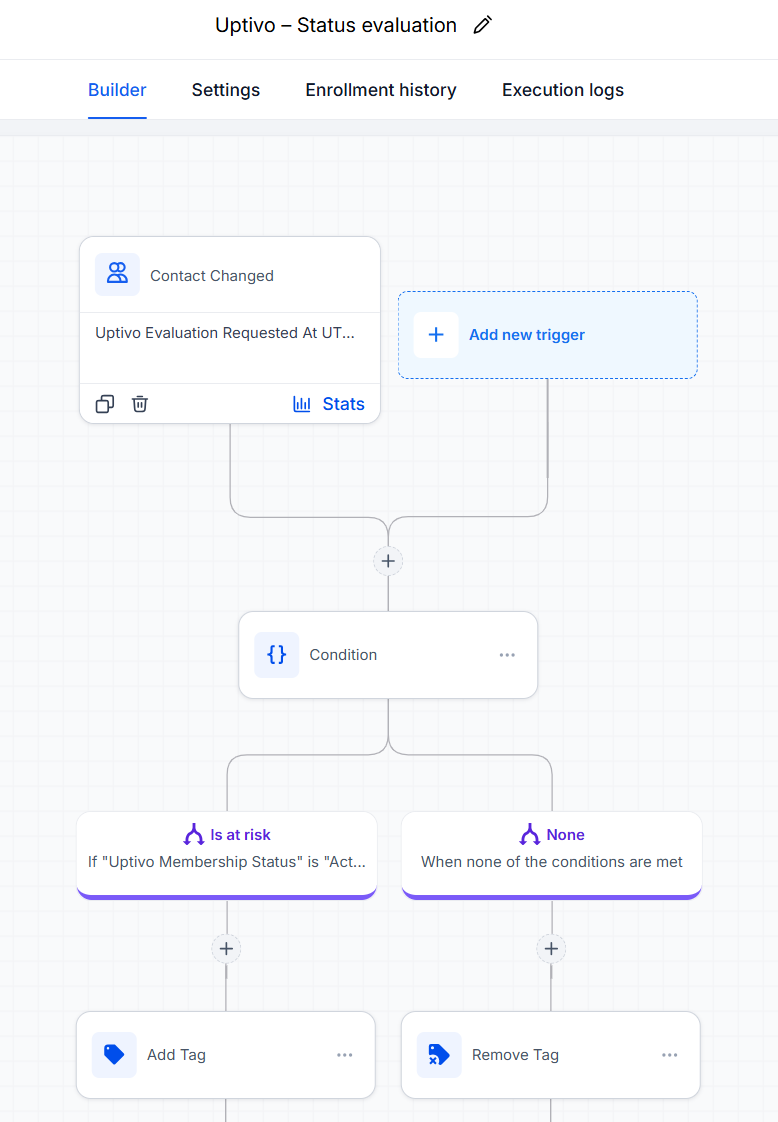
Use a separate campaign workflow, triggered by Contact Tag > Tag Added on your eligibility tag, for messages and waits. Recheck eligibility before each message and after each wait. A contact cannot reenter an evaluation workflow while still active in it, so keep evaluation short.
The signal can change after a relevant update or a periodic refresh even when the data is unchanged. Another evaluation is not another reason to send. Keep campaign markers to distinguish a new episode from a repeated evaluation.
See GoHighLevel’s Contact Changed guide and workflow settings for the trigger and reentry controls. Tag-only triggers can respond to tag changes, but do not by themselves reevaluate a condition as days pass.
Welcome members after their first check-in
Section titled “Welcome members after their first check-in”Example conditions: membership Active, Uptivo Lifetime Check In Count
greater than zero, and no customer-managed club-onboarding-started tag.
- In the evaluator, add
club-onboarding-startedbefore requesting the welcome campaign through another tag such asclub-onboarding-requested. - Configure the welcome campaign without reentry if it should run only once per contact. Send practical information or create a trainer follow-up task.
- After completion, remove the request tag but keep the started marker.
For an initial import, mark existing members who should not receive a new welcome before enabling them. A lifetime count alone does not distinguish a new first visit from one that happened before the integration was connected.
Follow up on low attendance
Section titled “Follow up on low attendance”A possible rule is:
- Uptivo Membership Status is
Active; - Uptivo Attendance Window Days is
30; - Uptivo Rolling Check In Count is less than
3.
Add club-at-risk only when the rule becomes true. Remove it, and remove the
contact from the related campaign, when the rule becomes false. Keep it while
the condition remains true so repeated refreshes do not restart the campaign.
Decide whether to include newly joined Athletes or those with no lifetime attendance. The prior-window count can help identify a decline instead of simply low attendance. These are Class attendance signals, not a measure of all Training activity or independent proof of physical presence.
Run a win-back campaign
Section titled “Run a win-back campaign”Use Uptivo Membership Status = Canceled or uptivo-status-canceled to
identify canceled memberships. Create a separate customer-managed eligibility
tag for your campaign, and a different one for Expired if your club treats
them differently.
- On first observing the chosen status, add its eligibility tag.
- Start the campaign from that tag and wait for the delay chosen by the club, for example seven days.
- Before messaging, check the status and common eligibility conditions again.
- When the contact no longer qualifies, remove its eligibility tag and stop the related campaign.
In this example, the delay starts when GoHighLevel first observes the status.
It is not the exact historical cancellation time. Uptivo Most Recent End
is an assignment’s end date, not a cancellation or ticket-exhaustion timestamp.
A membership can be Expired because its activities ran out before that date.
Encourage monthly UPPs progress
Section titled “Encourage monthly UPPs progress”Use Uptivo Month To Date UPPs, Uptivo Monthly UPPs Goal, and Uptivo Monthly Reset At UTC. A possible campaign targets active members who are within 350 UPPs of the goal and have at most five days before reset.
- Require a goal greater than zero and a nonempty reset value.
- Calculate goal minus month-to-date UPPs into a customer-managed numeric field, not an Uptivo field. Require the result to be greater than zero.
- Convert the UTC text reset into a date before calculating the time left. Use the date/time tools available in your GoHighLevel plan and test their input format. Do not substitute the Location’s end of month.
- Store the reset value in your own Club Last UPPs Reset Notified field before requesting a message. Skip the same period on later evaluations.
- Use the actual remaining UPPs in the message, not the example threshold.
Suppress messages after the goal is reached or the reset has passed. If a campaign includes a wait, store the requested period and verify it again before sending, so a previous month’s request cannot produce a stale reminder.
Recognize an observed level increase
Section titled “Recognize an observed level increase”Create a customer-managed numeric field such as Club Observed Level.
- On first evaluation, copy Uptivo Current Level to it and stop without sending. Zero is a valid level, not an empty value.
- On later evaluations, compare the two numeric values.
- If the current level is higher, update the observed value and request the congratulations message. If lower, update it and apply your club’s rule.
- If unchanged, do not request another message.
This compares observations, not every historical transition. Several changes between evaluations can appear as one jump. Decide whether to establish a new baseline when re-enabling a contact after a long absence.
Stop campaigns when an Athlete leaves
Section titled “Stop campaigns when an Athlete leaves”Create a separate workflow triggered by Contact Tag > Tag Added on
uptivo-club-removed. The removal tag is not accompanied by the evaluation
signal, so do not wait for that signal to stop campaigns.
Remove the contact from each related Uptivo campaign with Remove from
Workflow > Another Workflow, and remove temporary eligibility tags. Do not
remove the contact from unrelated workflows or clear one-time onboarding and
period markers. Apply the same policy when your club-automation-enabled tag
is removed.
See GoHighLevel’s Remove from Workflow action. An Athlete returning to the club should not automatically receive a second onboarding journey. Disconnecting the whole integration is also different from an Athlete leaving: pause campaigns separately before disconnecting.
Test before sending
Section titled “Test before sending”Check workflow Enrollment History and Execution Logs, including:
- two evaluations with unchanged data: no duplicate message for the same episode or monthly period;
- membership returning to
Activeduring a win-back wait: no stale message; - improved attendance: the related eligibility tag and campaign are removed;
- an existing member imported with historical visits: the chosen onboarding policy is respected;
- an Athlete leaving during a wait: the removal workflow stops the campaign;
- a goal already reached or reset already passed: no UPPs reminder.
Test signal-driven workflows with an Uptivo change or an automatic refresh. Updating data manually is not a guarantee that an evaluation signal is sent. If a message fails after a campaign marker was written, review its execution and recover that run rather than clearing all markers. Workflow steps do not guarantee exactly-once delivery, and a successful evaluation does not confirm email or SMS delivery.