Connect from a Sub-account
Use this guide when you authorize directly for the GoHighLevel Sub-account that should receive the club’s data. GoHighLevel also calls this account a Location. Check the prerequisites before starting.
This guide starts from a selected club in Uptivo. To install directly in GoHighLevel and choose your club afterward, follow Start from the GoHighLevel Marketplace. A Location-specific authorization can be linked directly when you confirm the club; you do not need to authorize the app a second time.
Start from Uptivo
Section titled “Start from Uptivo”- Sign in at my.uptivo.fit.
- Select the Uptivo club you want to connect.
- Open Club Profile > Integrations.
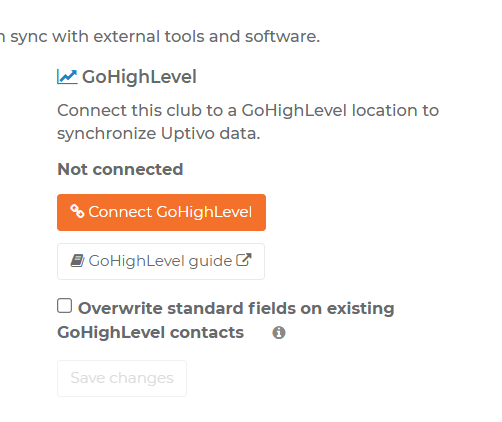
- Under Connect with Uptivo > GoHighLevel, review Overwrite standard fields on existing GoHighLevel contacts. It is unchecked by default to preserve existing CRM profiles and Contact Type.
- Select Connect GoHighLevel. Uptivo saves a changed overwrite choice before authorization starts; Save changes can save it separately.
The option does not stop Uptivo custom fields and tags from updating. See Overwrite standard contact fields before enabling it.
You do not need to create API keys or configure webhook destinations yourself.
Authorize the intended Sub-account
Section titled “Authorize the intended Sub-account”- Sign in to GoHighLevel with access to the intended Sub-account.
- Check that the authorization is for the Location belonging to this club.
- If shown the Uptivo app page, select Install. On Install confirmation, review the selected Location and requested access, then select Allow & install.
- Return to Uptivo. A Location-specific authorization connects that Location directly to the club from which you started.
- Check that the connection shows Connected and the expected Location ID.
View the Uptivo app page for a Sub-account
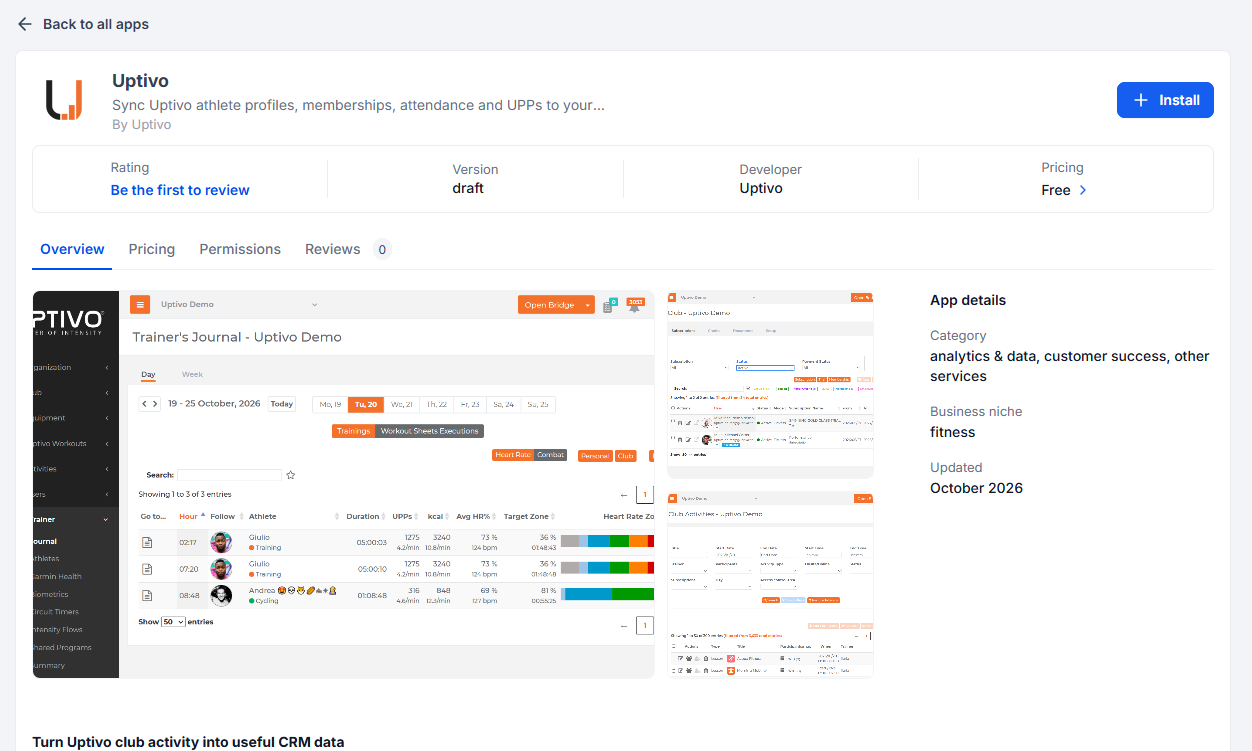
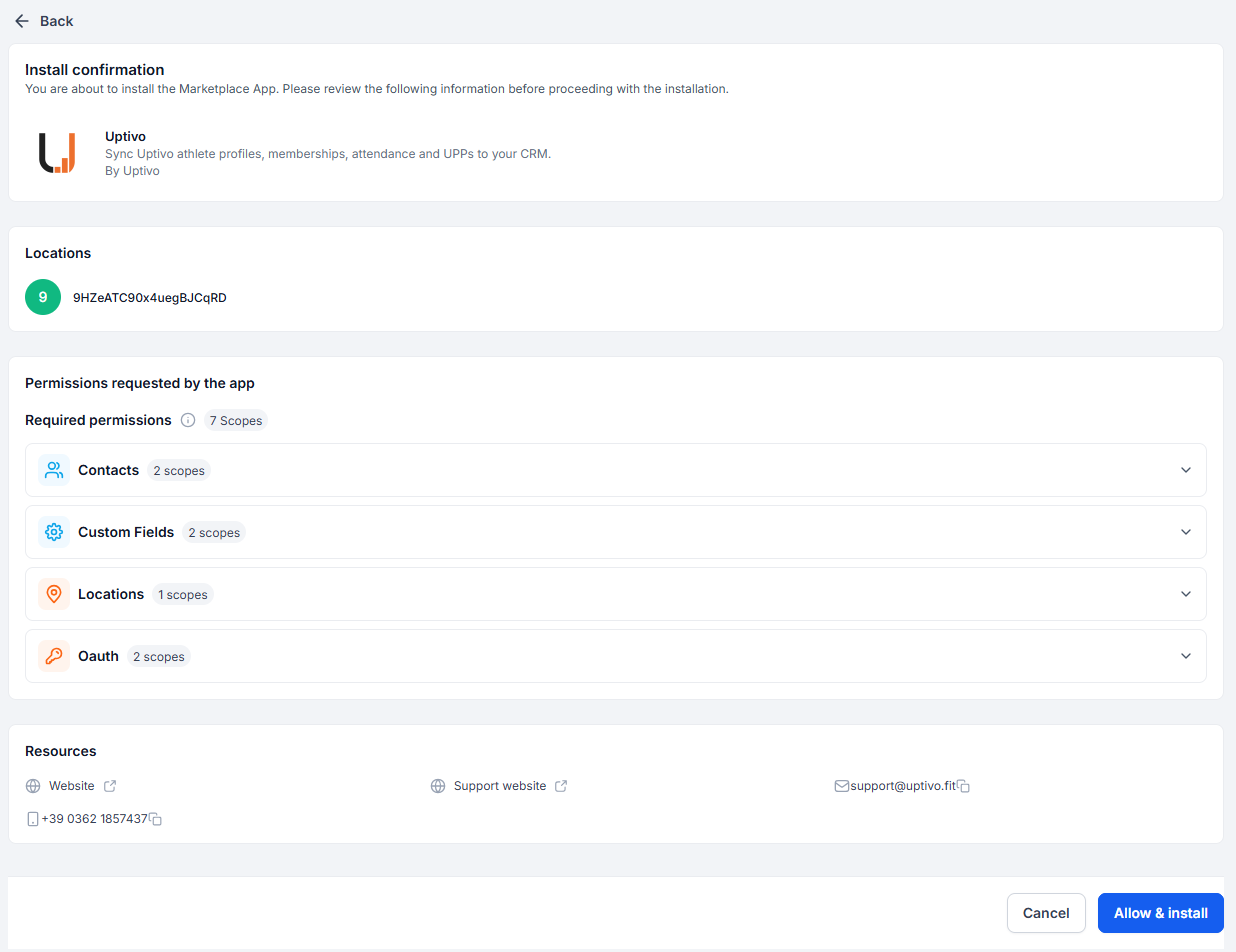
If Uptivo instead asks you to choose a Location, the authorization requires the additional selection step. Follow Select and confirm the Location in Uptivo. Do not leave the process at the GoHighLevel installation screen.
Verify before enabling workflows
Section titled “Verify before enabling workflows”Follow Check the first synchronization with a test Athlete. Keep your messaging workflows paused until you have checked the contact’s identity, data, and campaign conditions.
If you selected the wrong Location, do not repeat authorization hoping to switch it silently. Follow Change the connected Location.