Manage the GoHighLevel connection
Open the selected club at my.uptivo.fit, then Club Profile > Integrations > Connect with Uptivo > GoHighLevel. Check the displayed connection status and Location ID before making changes.
Overwrite standard contact fields
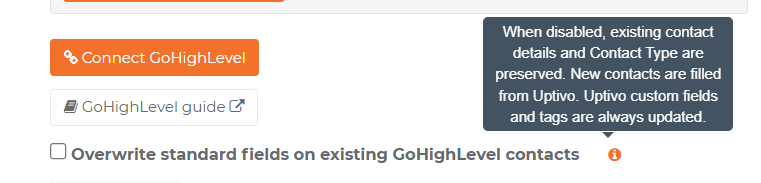
Section titled “Overwrite standard contact fields”The checkbox Overwrite standard fields on existing GoHighLevel contacts is off by default. Leave it unchecked to preserve existing names, email, phone, date of birth, address, city, state/province, postal code, country, timezone, and Contact Type in GoHighLevel.
Enable it only if Uptivo should update those standard fields on existing contacts. New contacts are filled from Uptivo in either mode; from their next synchronization onward they follow the same rule as other existing contacts. Uptivo custom fields and managed tags continue to update in either mode.
To change the option:
- Open the selected club’s GoHighLevel panel.
- Check or uncheck Overwrite standard fields on existing GoHighLevel contacts.
- Select Save changes and confirm that the save succeeds.
You can save the choice before connecting. If you change it and select Connect GoHighLevel instead, Uptivo saves the choice before continuing to authorization. A saved choice applies to subsequent background processing; an update already in progress can finish using the previous choice. Saving does not immediately rewrite every contact.
Turning the option off preserves the values then present in GoHighLevel; it does not restore CRM values that were overwritten earlier. Empty standard fields on an existing contact are also preserved while the option is off.
See Data ownership for the field rules. Enabling overwriting can replace CRM edits or clear standard values whose Uptivo source is blank, so review the effect with a test contact first.
Reauthorize the current Location
Section titled “Reauthorize the current Location”If Uptivo asks you to reconnect, use the connection button and complete the GoHighLevel authorization again. For Agency authorization, confirm the existing Location if prompted. Reauthorization renews access to that Location; it does not silently switch the club to a different one.
Use an account that can manage the Uptivo club and authorize the same GoHighLevel Location. If authorization fails or is canceled, review the displayed status instead of assuming that the connection was renewed.
Change the connected Location
Section titled “Change the connected Location”- Review or pause the workflows using this club’s data in the current Location.
- Disconnect the existing association as described below.
- Wait until disconnection has completed. New connection attempts are blocked while cleanup is pending.
- Start a new connection from the Uptivo club and authorize the new Location.
- Review the overwrite choice, then verify the new Location ID and a test contact before enabling its workflows.
Contacts and data remain in the old Location. Connecting a new one does not move, merge, or delete those records.
Disconnect from Uptivo
Section titled “Disconnect from Uptivo”- Pause the related GoHighLevel campaigns or remove their contacts if they should no longer run.
- In the club’s GoHighLevel connection panel, select Disconnect and confirm.
- Check the resulting status. Disconnection and removal of the integration’s background notifications can take time. If Uptivo indicates that attention is required, contact support rather than starting repeated connections.
The integration attempts to remove its app authorization for the connected Location. Do not delete unrelated webhook destinations to complete this process.
Uninstall from GoHighLevel
Section titled “Uninstall from GoHighLevel”You can also uninstall Uptivo using GoHighLevel’s app management for the connected Location. The corresponding club connection is then disconnected. Verify its status in Uptivo after the uninstall is processed.
If you manage several Locations, check the scope of any Agency-wide uninstall before confirming: it can affect more than one connected club.
What stays after disconnecting
Section titled “What stays after disconnecting”- GoHighLevel contacts, synchronized values, and existing tags remain.
- Your workflows, messages, opportunities, and campaign markers remain under your control. They are not automatically stopped or removed.
- Your Uptivo club, Athletes, memberships, and Uptivo subscription are not canceled or deleted.
Synchronization stops for the disconnected association, but an update already being processed can finish during disconnection. Retained contact data is no longer kept current by this association.
uptivo-club-removed identifies an Athlete leaving the club. Disconnecting or
uninstalling the integration is not an Athlete removal and does not apply that
tag to every contact. Do not rely on it to stop all campaigns on uninstall.
If the Integrations tab is unavailable or disconnection needs attention, contact Uptivo support.