GoHighLevel overview and setup
The Uptivo integration for GoHighLevel keeps Athlete information available in your CRM for segmentation, follow-up, and member engagement. It synchronizes data from Uptivo to contacts in one GoHighLevel Sub-account, also called a Location.
No API keys or custom code are required to connect a club. You can install the app from the GoHighLevel Marketplace and choose your Uptivo club afterward, or start the connection from an already selected club in Uptivo.
What the integration does
Section titled “What the integration does”- Creates or updates contacts for the club’s Athletes.
- Synchronizes profile details, effective membership state, Class attendance, current level, and monthly UPPs progress.
- Maintains Uptivo fields and tags that your team can use in GoHighLevel workflows and pipelines.
- Processes relevant Uptivo changes in the background and periodically refreshes current data, including values that change as time passes.
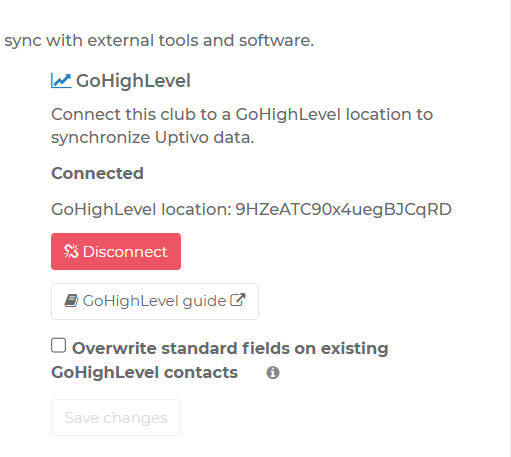
Uptivo is the source for its custom fields and managed tags. Standard fields on existing GoHighLevel contacts are preserved by default; you can enable overwriting them in the club’s connection settings. New contacts are filled from Uptivo regardless of that choice. Editing GoHighLevel data does not update Uptivo, and the integration does not import GoHighLevel contacts into Uptivo.
Your team creates and publishes its own workflows, messages, and pipeline rules. Uptivo does not install campaigns, workflow templates, or a Snapshot. See Synchronized data and tags and Workflow examples.
Prerequisites
Section titled “Prerequisites”Before connecting, make sure you have:
- Club API access enabled in the selected club’s Uptivo license. See Club API access.
- An Uptivo account authorized to manage the club, such as its manager or an authorized Uptivo administrator.
- A GoHighLevel account with permission to authorize the Uptivo app for the intended Location. An Agency user must have access to that Location.
- A clear mapping between the Uptivo club and its GoHighLevel Location.
The connection flow handles authorization for you. You do not need to copy a Subscription Key or create a Club API Key for this integration.
Choose a connection guide
Section titled “Choose a connection guide”| Your GoHighLevel access | Guide |
|---|---|
| You start by installing Uptivo from the Marketplace | Start from the GoHighLevel Marketplace |
| You manage the club through an Agency account | Connect from an Agency |
| You authorize directly for a Sub-account/Location | Connect from a Sub-account |
The Agency and Sub-account guides start at my.uptivo.fit, under Club Profile > Integrations > Connect with Uptivo > GoHighLevel. Installing the app in GoHighLevel alone does not complete the club association. Finish the connection in Uptivo and verify the selected Location.
Each connected club uses one Location, and that Location cannot simultaneously receive this integration’s data from another Uptivo club. An Agency can manage several clubs: repeat the connection separately for each club and its Location.
Start from the GoHighLevel Marketplace
Section titled “Start from the GoHighLevel Marketplace”- Find Uptivo in the GoHighLevel Marketplace and select Install. Sign in to GoHighLevel if needed. Select the business account where the app should be installed, review the permissions, and confirm Allow & install.
- Continue to Uptivo when authorization completes. Sign in to Uptivo if asked; an existing session is reused. After login, you return to the club selection page. Keep that page open until the connection is complete.
- Choose the Uptivo club to link. Only clubs you manage with an active license and Club API access, no existing GoHighLevel association, and no pending disconnection are available. You must choose explicitly, even if there is only one club. Use Refresh clubs to reload the available choices.
- If a GoHighLevel account is already shown, check its name. Hover over the name to inspect its ID; if the name is unavailable, the ID is shown instead. Select Link to GoHighLevel to confirm your choice of Uptivo club. The remaining steps take place in Uptivo without another GoHighLevel authorization.
- If you authorized through an Agency, Uptivo may next ask which installed Location to connect. Choose the account for this club and select Connect selected location. Locations linked to other clubs or awaiting disconnection are excluded. See Select and confirm the Location in Uptivo. If the authorization was already specific to one Location, this extra selection is not needed.
- Check that the club’s Integrations panel shows Connected, or a sync in progress, for the intended account. Then follow Check the first synchronization.
Complete the club association, including any Location selection, within one hour of authorization. Refreshing the page does not extend that time. You can resume from the same page while the authorization remains valid. If it expires or you can no longer return to that page, check whether the club is already connected. If it is not, uninstall Uptivo from GoHighLevel and reinstall it to start a new authorization. See Marketplace authorization expired.
Installing the app alone does not link a club or start synchronization. If you leave without confirming, the app remains installed in GoHighLevel but unlinked in Uptivo. Installing it in several accounts does not associate them all with the club you choose; each club connects to one account separately.
Existing standard contact fields are preserved by default. You can review the overwrite option later under Club Profile > Integrations > GoHighLevel. Uptivo custom fields and tags are updated in either case. See Overwrite standard contact fields.
Check the first synchronization
Section titled “Check the first synchronization”Before connecting, review Overwrite standard contact fields. Leave the option unchecked to preserve existing CRM profiles and Contact Type, or enable it if Uptivo should update those standard values too. Uptivo custom fields and tags continue to update in either case.
- In Uptivo, check that the GoHighLevel connection is Connected and the displayed Location ID is the one intended for this club.
- Allow the background synchronization to process the club. Larger clubs may take longer; Connected does not mean every Athlete has already been synchronized.
- In that GoHighLevel Location, open a contact corresponding to a test
Athlete. Check Uptivo User ID, Uptivo Club ID, and
uptivo-linked. - Check the membership, attendance, and engagement fields against the test Athlete’s current Uptivo data.
- Change the test Athlete’s nickname in Uptivo. After the update is processed, check Uptivo Nickname on the same GoHighLevel contact.
Updates run in the background; they are not guaranteed to appear immediately. Periodic refreshes also update existing contacts and help recover missed changes. See Troubleshooting if the expected contact or update does not appear.
Keep customer-facing workflows paused during the initial import. Existing Athletes bring their current and historical summary values, not just activity that occurred after connecting. Test your campaign rules before enabling them.
Next steps
Section titled “Next steps”- Review Synchronized data and tags before editing contacts or building filters.
- Use Workflow examples to create your own member journeys.
- Read Manage the connection before reconnecting, changing Location, or disconnecting.